

This guide will explain how to use the JIS function in Excel.
Table of Contents
The Japanese Industrial Standard or JIS is a set of standards and specifications established by Japanese-based enterprises to ensure uniformity and compatibility within the industry.
One of these standards is the JIS encoding standard. This standard defines specific numeric codes for Japanese characters, including Kanji, Hiragana, and Katakana.
When working with Excel formulas that involve Japanese text, you may need to ensure that the character encoding matches the JIS standard. Incorrect encoding can result in garbled or incorrect text in your formulas and cell values.
Excel has a JIS function that converts half-width (single-byte) letters within a character string to full-width (double-byte) characters. In this guide, we will provide a step-by-step tutorial on how to use the JIS function in Excel.
The Anatomy of the JIS Function
The syntax of the JIS function is as follows:
=JIS(text)
Let’s look at each argument to understand how to use the JIS function.
- JIS() refers to our
JISfunction. This function accepts a text value and returns a modified string where each character is a full-width character. - text refers to the text you want to change. This argument could be the actual text value or a cell reference containing a text value.
- If the text argument contains no half-width English letters or katakana, the text is not changed.
A Real Example of Using the JIS Function in Excel
Let’s explore a simple example where we can use the JIS function in Excel.

In the table above, we have a table containing text strings that we want to convert into full-width characters. For example, providing the string “hello!” will return the string “hello” instead.
We can use the following formula to convert the text in cell A2 to use full-width characters:
=JIS(A2)
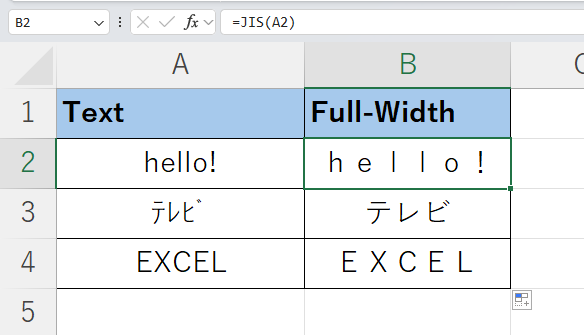
In our table above, we’ve converted both English letters and Japanese katakana to full-width characters.
Setting the preferred authoring language to Japanese
The JIS function may only work in Excel if Japanese is set as the preferred language in your program’s settings.

You can find the Language preferences by selecting File > Options and navigating to the Language tab. If Japanese has not yet been added as an authoring language, click the Add a Language option.
Click on the link below to create your own copy of our example.
Head to the next section to read our step-by-step guide on how to use the JIS function in Excel.
How to Use the JIS Function in Excel
- Select the cell where you wish to add the
JISfunction.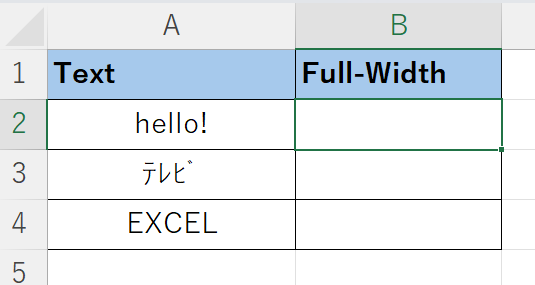 In our example above, we’ll use cell B2 to hold our first
 JISfunction. We will copy the formula later to fill the rest of the column. - Type the
JISfunction and provide the argument you want to convert to full-width text. This argument could be a text value or a cell reference.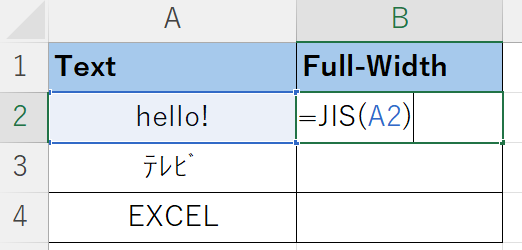
- Hit the Enter key to evaluate the function.

- Use the AutoFill feature to copy the
JISfunction across the whole column.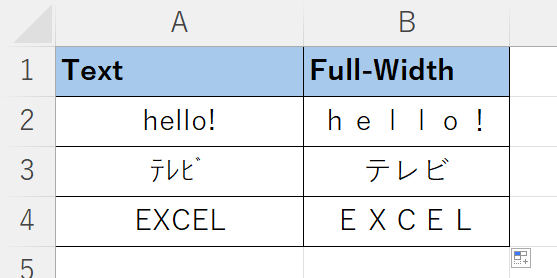
- You can use the
DBCSfunction instead if your version of Excel does not support theJISfunction. For example, in the web version of Excel, the
 JISfunction has been replaced with theDBCSfunction. TheDBCShas the same functionality as theJISfunction.
These are all the steps you need to know to start using the JIS function in Excel.
FAQs
- How do I convert full-width characters back to half-width characters in Excel?
Excel comes with theASCfunction, which converts full-width ASCII and katakana characters to an equivalent half-width character. For example, the formula =ASC(“グーグル”) will return the string “グーグル”.
To learn more about using Excel for manipulating text with double-byte characters, you can read our post on how to use the FINDB function in Excel. You may also be interested in our guide on how to rotate text in Excel.
That’s all for this guide! Be sure to check out our library of spreadsheet resources, tips, and tricks!